
Create a WhatsApp AI Agent
NileDesk AI agents let people work with your processes by chatting — on WhatsApp or on the web. An agent reads each incoming message, checks it against your rules, and uses the tools you give it to create process items or look up data.
This guide follows a complete example: an IT Support Agent that lets registered employees raise IT Support Request items from WhatsApp and check the status of their own requests.
Before you start
- A process for the agent to work with. In this example, the process flow IT Support Request, which collects Problem Details and Reference Documents.
- A WhatsApp Business app in Meta. In your Facebook developer account, create an app for the WhatsApp phone number the agent will use.
- Users' phone numbers (if you want to recognise who is messaging). In the example, each user's phone number is stored in the Phone column in Users Management.
1Open AI Agents
On the NileDesk home screen, open the (⋮) menu at the top right and choose AI Agents.
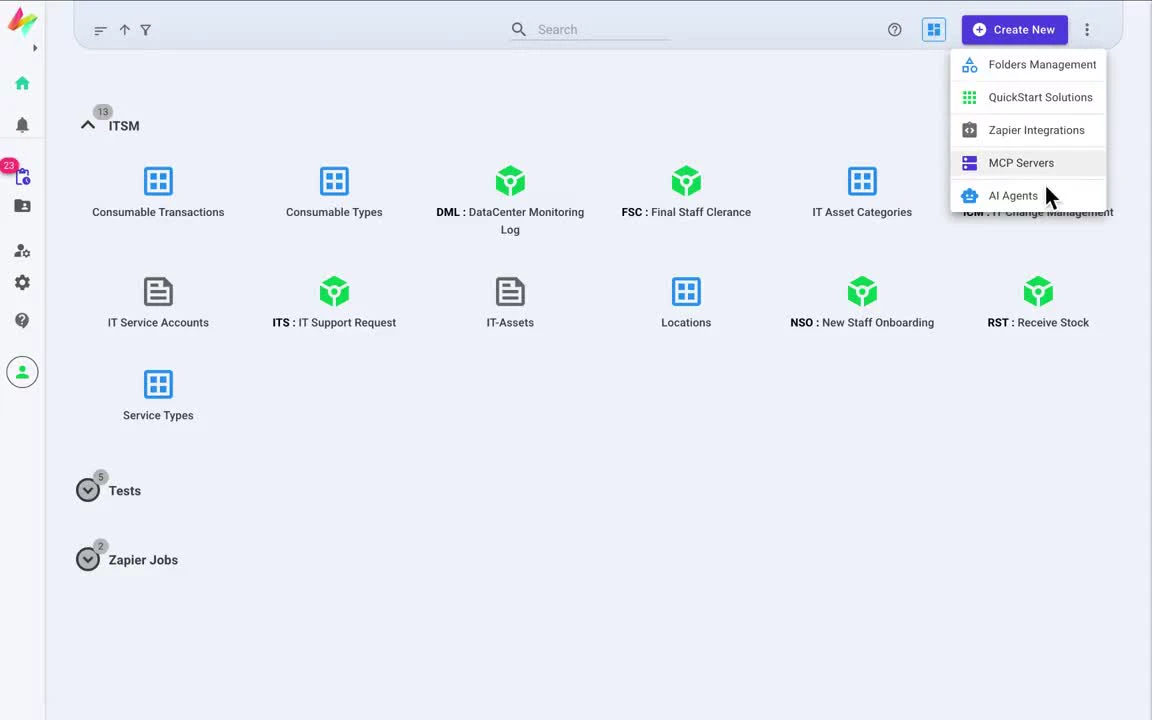
2Create the agent & enter credentials
Click Create Agent, give the agent a name (e.g. IT Support Agent) and set Agent Type to WhatsApp. (You can also choose a web-based agent.)
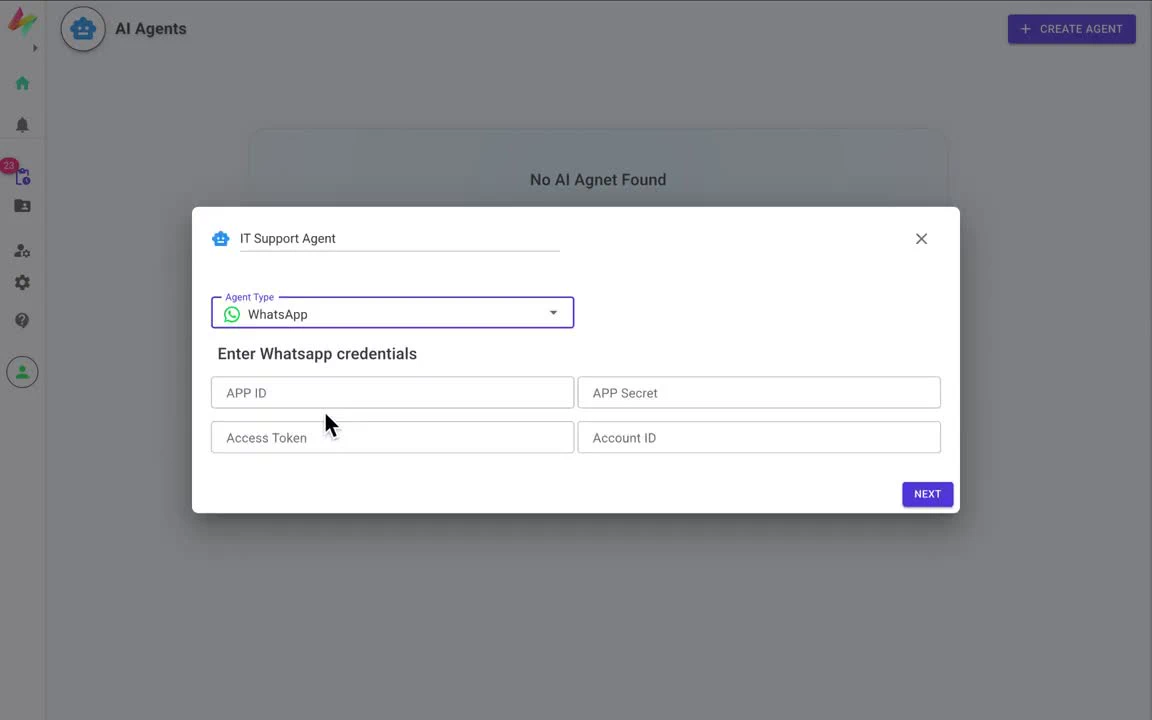
Enter your WhatsApp credentials from your Meta developer app:
| Field in NileDesk | Where to find it in Meta |
|---|---|
| APP ID, APP Secret | Your app → App settings › Basic |
| Access Token, Account ID | Your app → Use cases → Connect on WhatsApp › API Setup, which shows the access token, the Phone number ID and the WhatsApp Business Account ID |
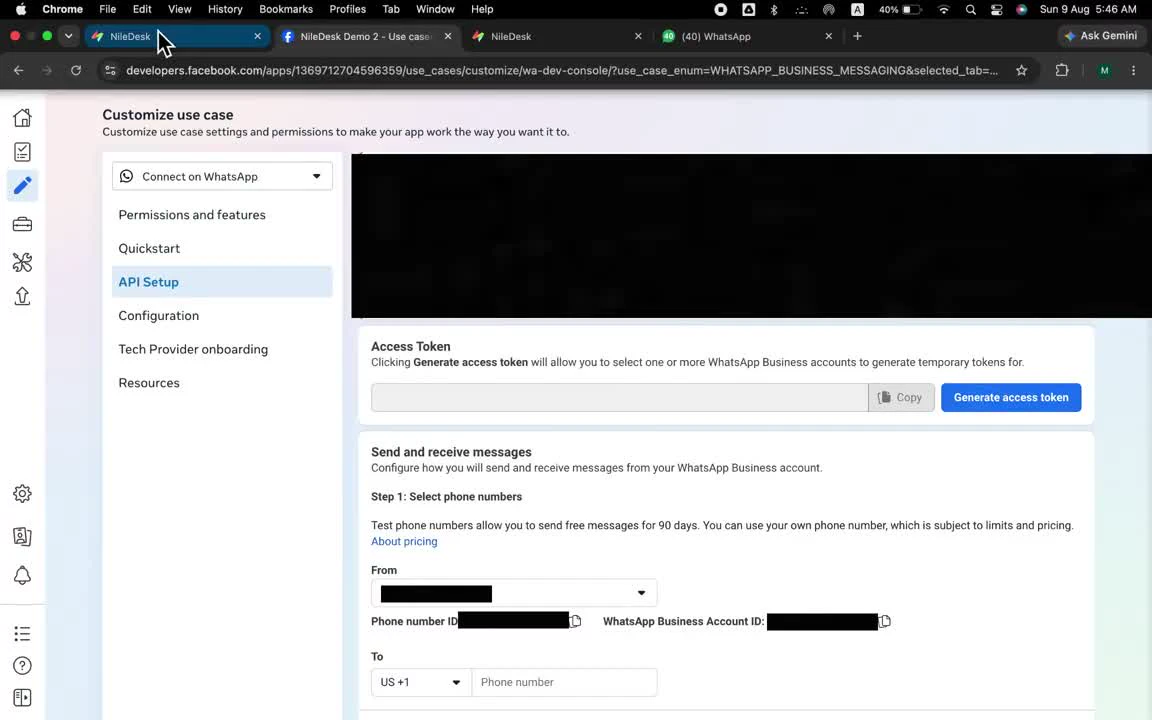
Click Next.
3Send a test message
Send one message (for example "hi") from WhatsApp to your business number. NileDesk receives it and automatically moves on to the agent settings. You'll see this message again under Preview Incoming Data in the next step.
4General: instructions
The agent settings have four tabs: General, Validate, Tools and Memory.
- Agent Instruction — define how the AI should behave: its role, tone, business rules, constraints and when to use which tool.
- User Message — the message sent to the AI as user input. It is filled in for you with
{{_input_data.message}}, the text of the incoming WhatsApp message.
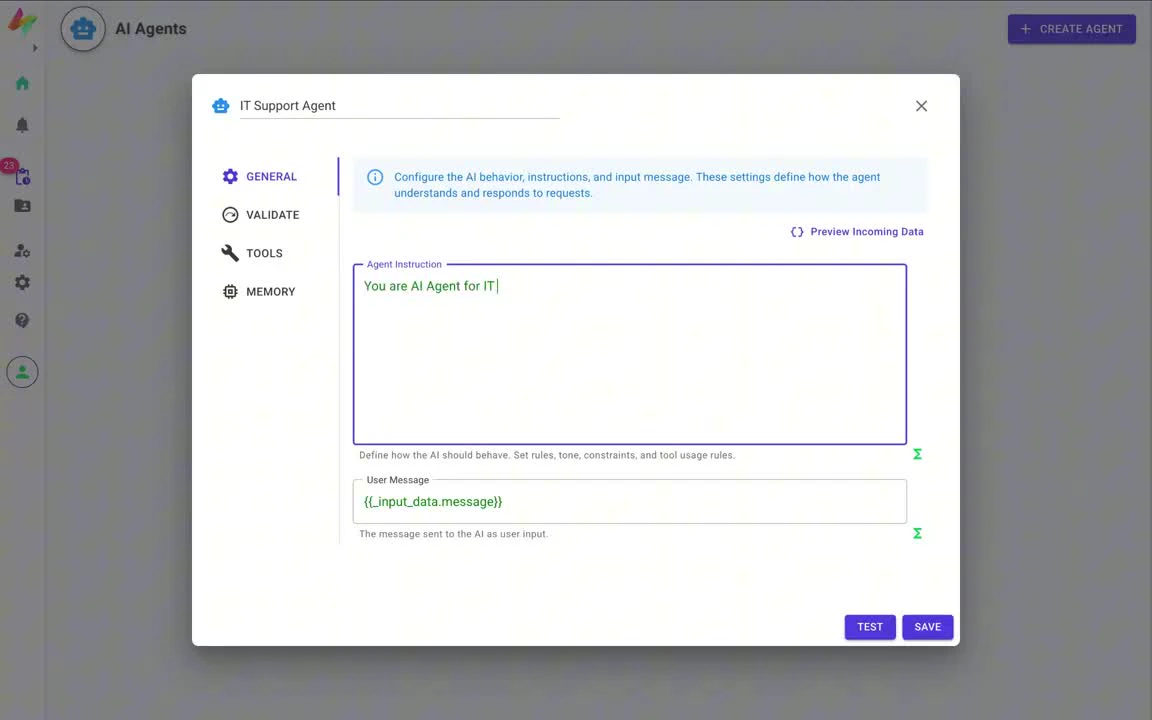
Click Preview Incoming Data to see what NileDesk receives with each message. You can use these values anywhere an expression is allowed:
| Value | Contains |
|---|---|
_input_data.from_phone | The sender's WhatsApp number |
_input_data.message | The message text |
_input_data.timestamp | When the message was sent |
_input_data.type | The message type (e.g. text) |
5Validate incoming messages
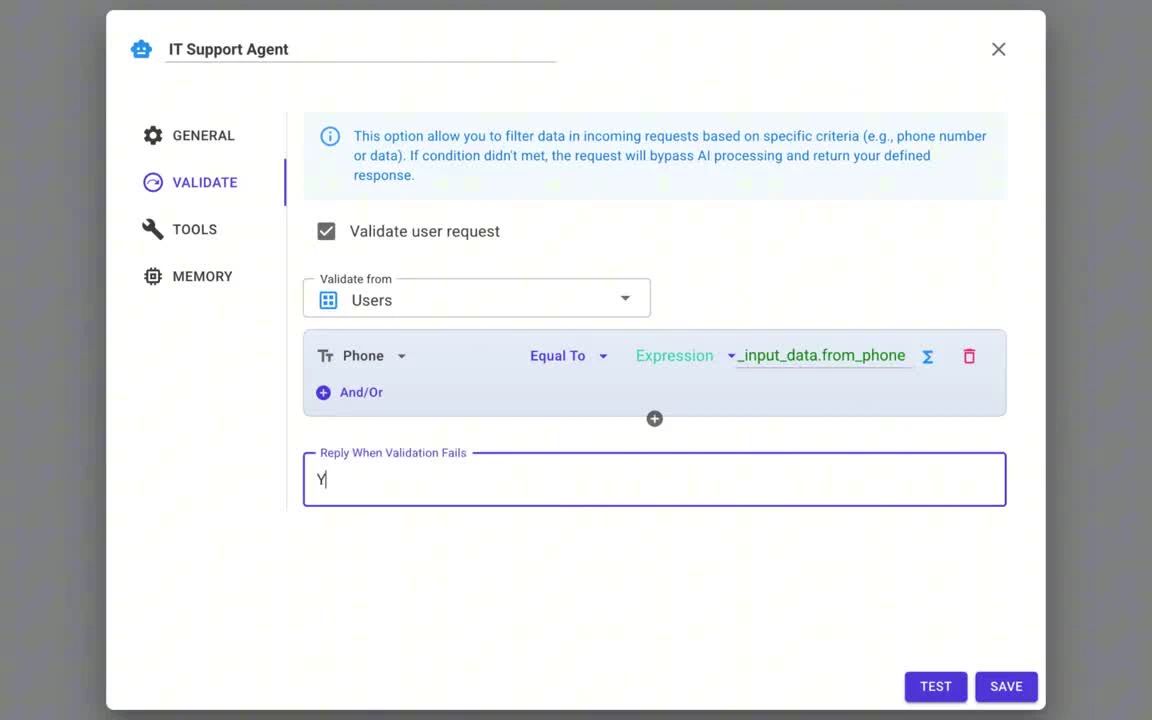
Validation filters incoming messages before they reach the AI — for example, to accept messages only from your registered users. If a message doesn't meet the condition, it bypasses AI processing and the sender receives the reply you define.
- Tick Validate user request.
- In Validate from, choose where to check — in the example, Users.
- Add a condition: Phone · Equal To · Expression
_input_data.from_phone. Use And/Or to add more rules. - Enter a Reply When Validation Fails, so senders always know what's happening.
6Tools: what the agent can do
Tools let the agent take actions and fetch information. Click Add Tool and fill in:
- Tool Name and Tool Description — the description tells the AI when to use the tool, so be specific (e.g. "use this tool when you have to add a new IT support request").
- Select Action — what the tool does, e.g. Create New Process Item (Process Flow) or Find Many Records (All).
- Select Template — the process, board, dataset or form it works on.
- Fields and settings — each value can come With AI (the AI fills it from the conversation, guided by your hint), a fixed Value, or an Expression (e.g. from the incoming data).
Use Test Tool to try it, then click Done. The example agent uses three tools:
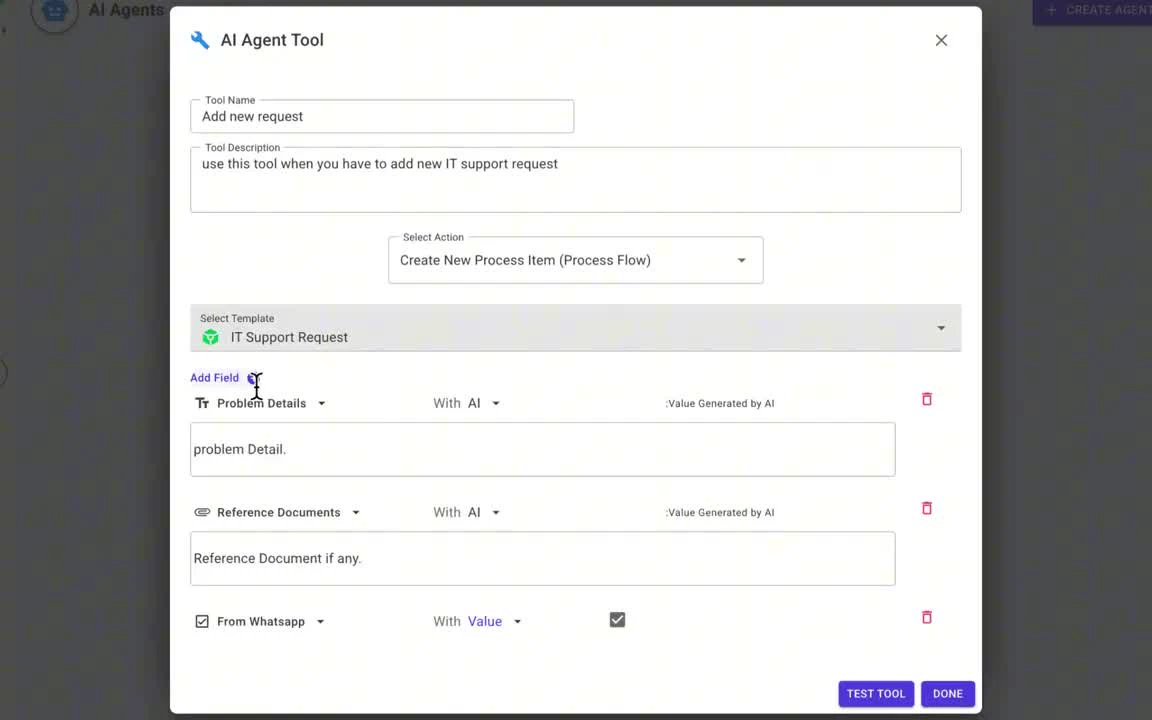
Tool 1 — Add new request
Action Create New Process Item (Process Flow) on template IT Support Request:
| Field | Value from | Setting |
|---|---|---|
| Problem Details | AI | Hint: "problem detail" |
| Reference Documents | AI | Hint: "reference document if any" |
| From Whatsapp | Value | Ticked (true) |
| Phone Number | Expression | _input_data.from_phone |
Tool 2 — View existing requests
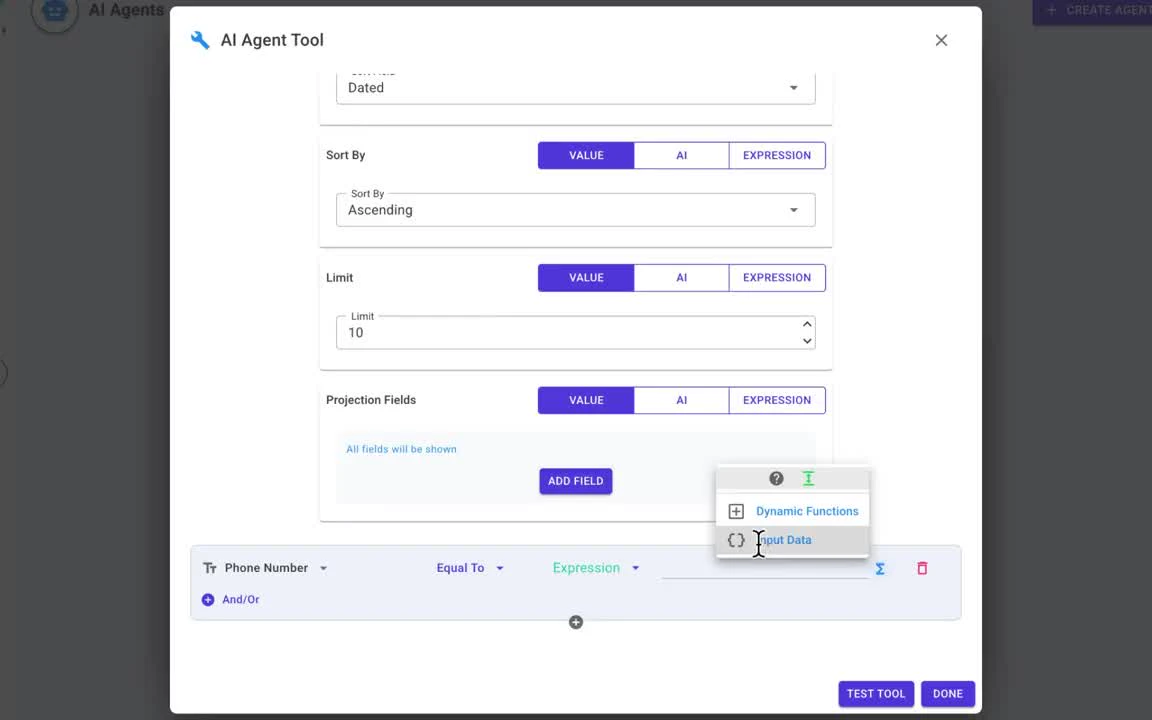
Action Find Many Records (All) on template IT Support Request. Set the sort field, sort order, limit
and projection fields as needed — each can again come from a Value, AI or an Expression.
Then add a condition so the AI can only see the sender's own requests:
Phone Number · Equal To · Expression _input_data.from_phone.
Tool 3 — Get current user name
Action Find Many Records (All) on Users, with projection field name and the condition
Phone · Equal To · Expression _input_data.from_phone — so the AI knows the sender's name.
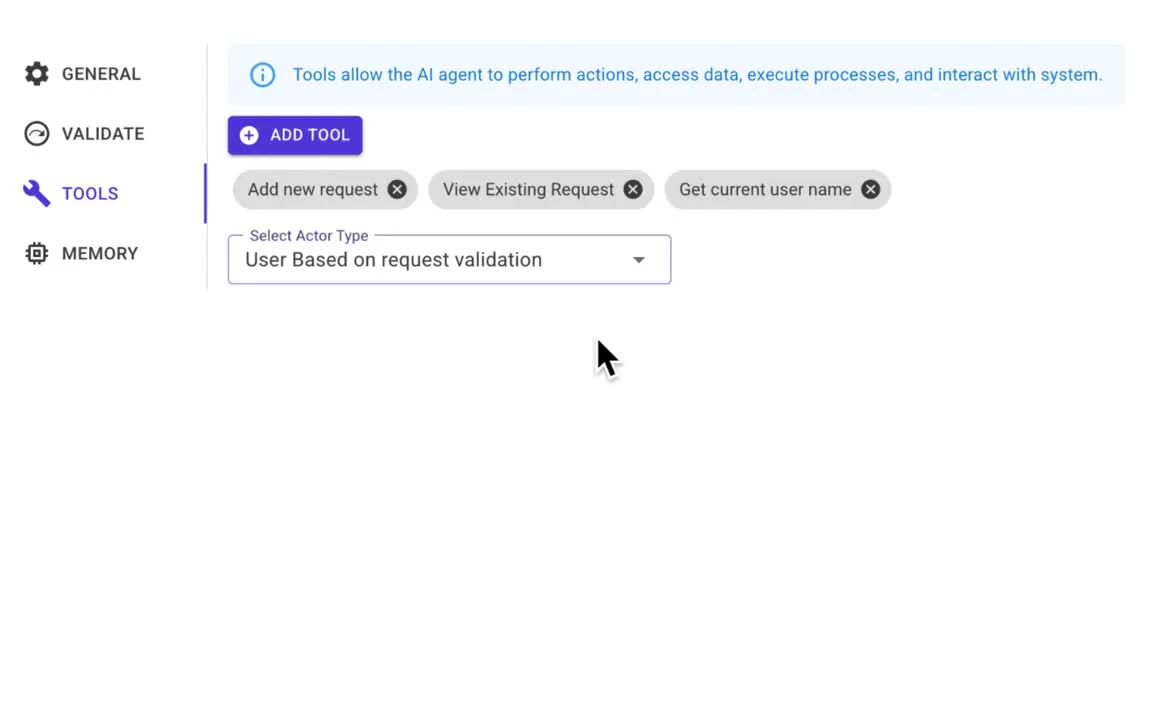
Who performs the actions
Below the tools, Select Actor Type sets the NileDesk user under whose name tool actions run. Choose a fixed user, or User Based on request validation — NileDesk then uses the user found by your validation rule (here, the user whose phone number matches the sender). That's why requests appear under the sender's own name.
7Memory
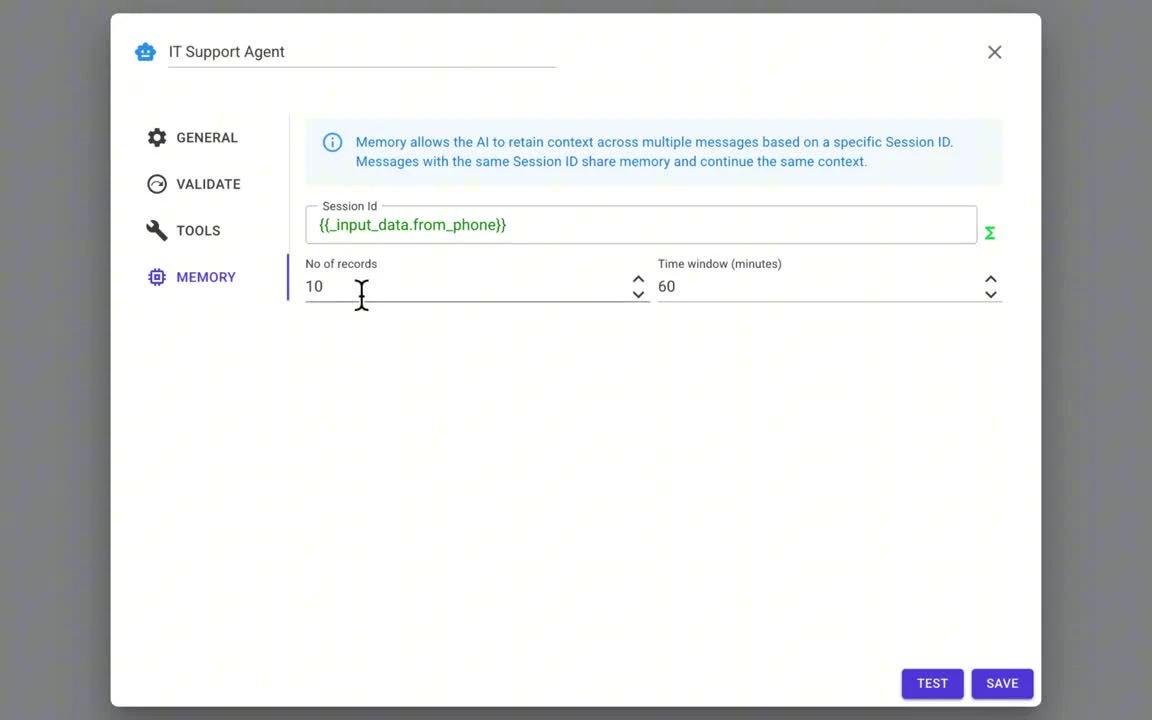
Memory lets the AI keep context across messages. Messages with the same Session Id share memory and continue the same conversation.
- Session Id — e.g.
{{_input_data.from_phone}}, so each phone number has its own conversation. - No of records — how many recent messages the AI remembers (10 in the example).
- Time window (minutes) — how far back those messages may be (60 in the example).
8Save, enable & try it
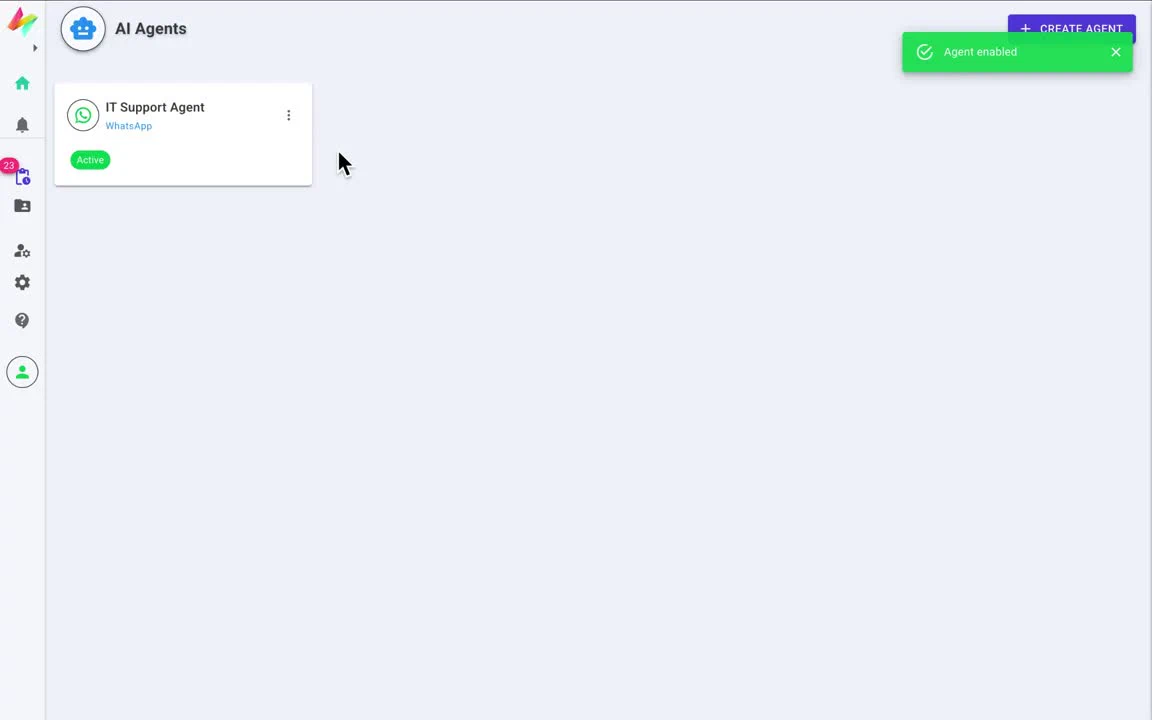
Save the agent and enable it (you can use Test to check your configuration first). Its card on the AI Agents page shows the agent type and the Active status.
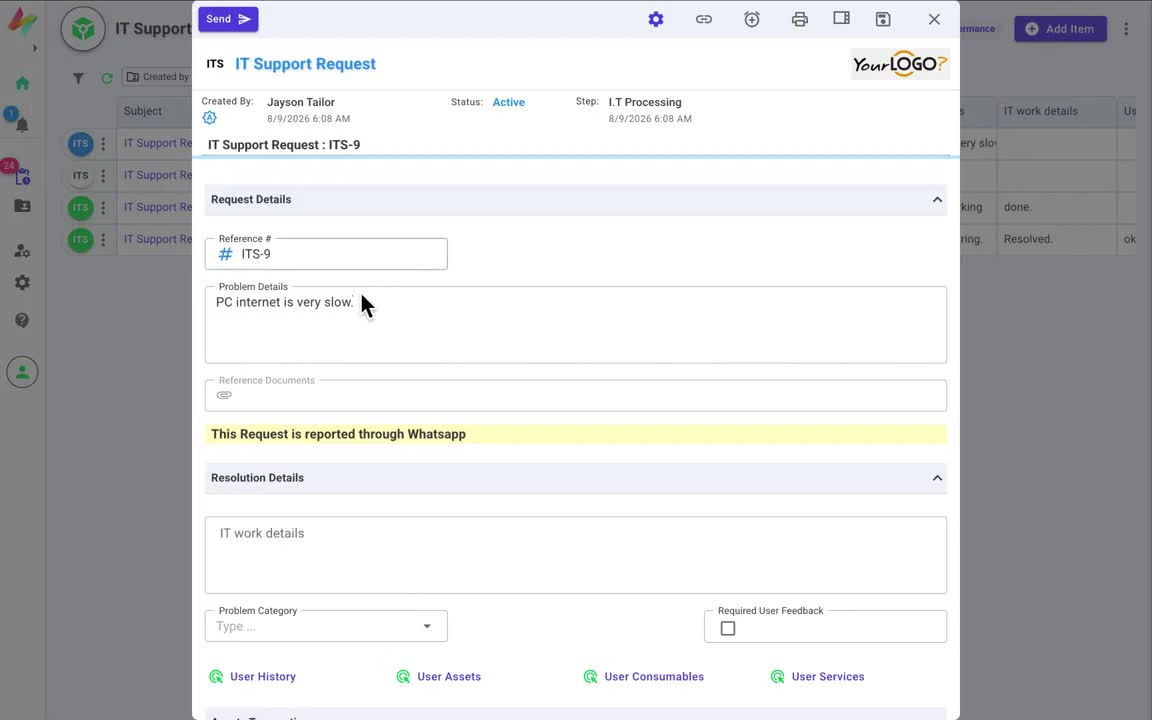
Now send a real message on WhatsApp — for example, describe an IT problem. The agent creates the request, with the initiator taken from the registered user and the details from the conversation. The new item then follows your process as usual: it is assigned to the right person and moves through its steps.
Tips
- Write clear tool descriptions. The AI picks tools based on their descriptions.
- Limit what each tool can see. Conditions such as
_input_data.from_phonekeep users to their own data. - Validate first. Validation runs before the AI, so unknown senders get your fixed reply without any AI processing.
- Build more agents the same way. Create WhatsApp or web agents for other processes and scenarios, each with its own rules and tools.
Related: Create a process flow · Users management · Expressions · Video tutorials